


Transfer Spotify to Apple Music: Complete Guide (2026)
Many listeners who initially used Spotify eventually decide to move their music libraries to Apple Music for better integration with Apple devices, improved library management, or personal preference. However, one major challenge when switching platforms is keeping your carefully curated playlists.
Fortunately, several tools can help you 転送 Spotify AppleMusicへ quickly and efficiently. In this guide, we will walk you through the best methods to transfer Spotify playlists to Apple Music. We will also cover alternative online tools and practical tips to make the migration process smooth and accurate.
コンテンツガイド Part 1. Why Users Want to Transfer Spotify Playlists to Apple Musicパート 2. 最良の転送方法 Spotify Playlists to Apple MusicPart 3. Alternative Online Tools to Transfer Spotify Playlists to Apple Musicパート4。よくある質問パート5:結論
Part 1. Why Users Want to Transfer Spotify Playlists to Apple Music
Before exploring the tools available, it is helpful to understand why many users decide to transfer Spotify to Apple Music in the first place.
- Switching Music Ecosystems: For users who rely heavily on Apple hardware, Apple Music provides a more seamless listening experience.
- Keeping Existing Playlists: Losing those playlists during a platform switch can be frustrating. This is why playlist migration tools are so important.
- Manual Transfer Is Inefficient: This approach has several problems, like searching each song individually takes hours; some tracks may be forgotten, the playlist order may not match the original, and more.
Because of these challenges, most users rely on specialized tools to transfer Spotify to Apple Music automatically.
パート 2. 最良の転送方法 Spotify Playlists to Apple Music
利用可能なツールの中には、 DumpMedia あらゆる音楽コンバータ is one of the most reliable solutions for users who want to transfer Spotify to Apple Music quickly and accurately. Its dedicated Playlist Transfer feature simplifies the entire migration process and ensures that playlists are recreated correctly.
DumpMedia 両方で動作します Windows and macOS, making it accessible to a wide range of users. The Playlist Transfer feature is designed specifically for cross-platform playlist migration. Here are some of its most valuable capabilities:
- Batch Playlist Transfer: You can move multiple playlists at once instead of transferring them individually.
- Smart Track Matching: The software automatically identifies the corresponding songs in Apple Music, improving transfer accuracy.
- Metadata Preservation: Important information such as song titles, artists, albums, and playlist order can be retained during the migration.
転送のステップバイステップガイド Spotify AppleMusicへ
Follow these simple steps to complete the migration process.
ステップ 1: ダウンロードしてインストール DumpMedia Any Music Converter on your Windows or Mac computer. After installation, launch the program to access the main interface.
ステップ 2: Navigate to the Playlist Transfer feature within the program. Choose Spotify 情報源として。
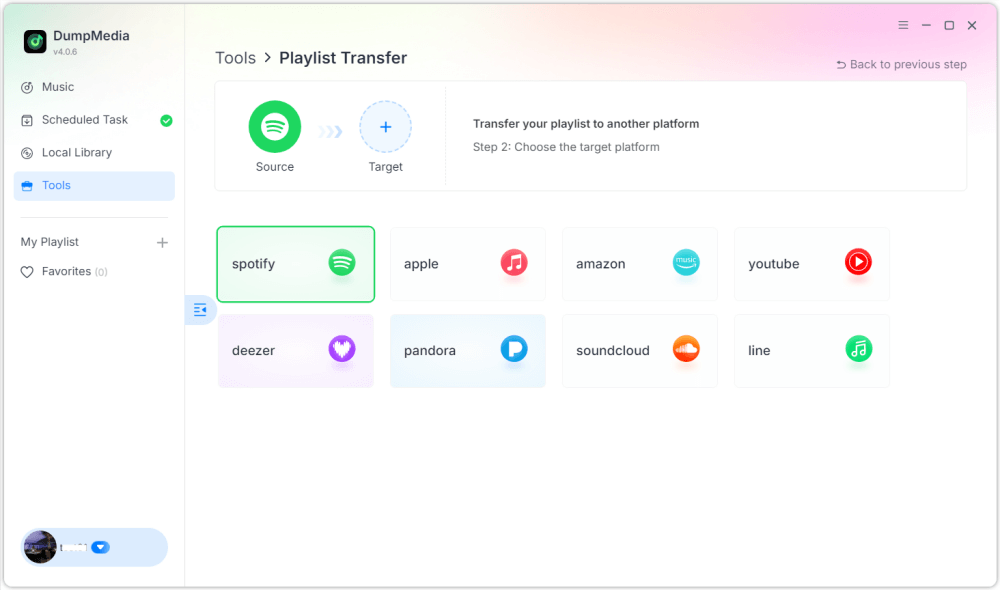
ステップ 3: Select Apple Music as the platform where you want to move your playlist.
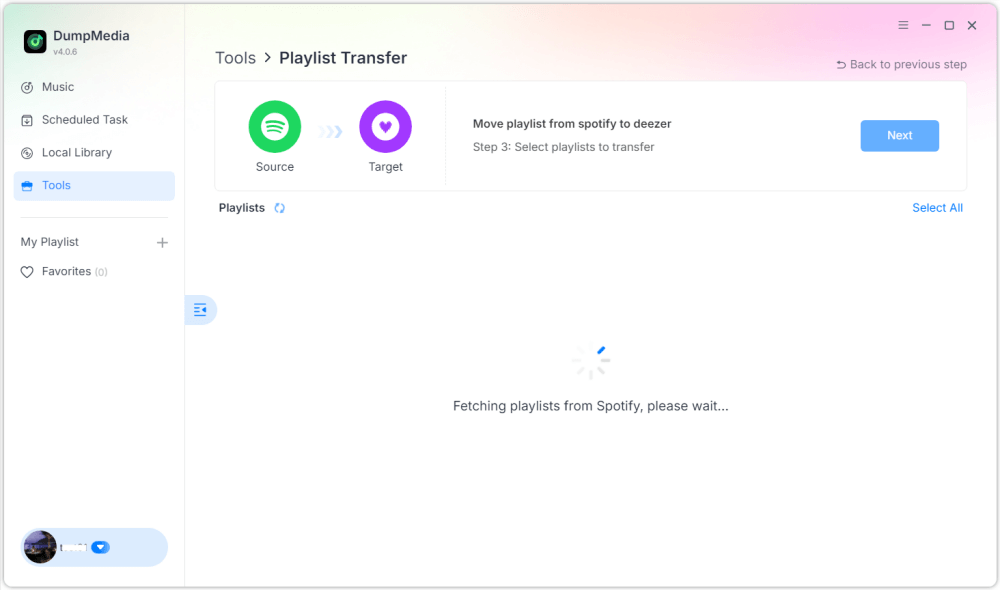
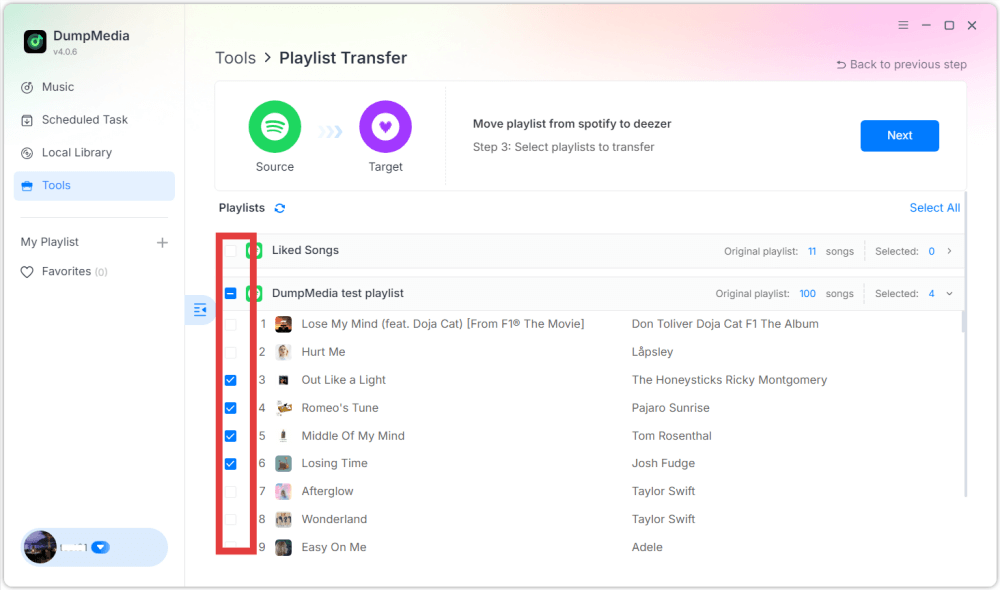
ステップ 4: Find the playlists you want to transfer from Spotify to Apple Music and select all the playlists you want to move.
ステップ 5: 転送を開始するには、「変換」をクリックします。
ステップ 6: The transfer is finished. Click "Go to Apple Music". Your playlists have been moved to a new service, and you can start enjoying your new music streaming service.
For users with large music collections, this solution provides one of the easiest ways to transfer Spotify to Apple Music without errors or missing tracks.
Part 3. Alternative Online Tools to Transfer Spotify Playlists to Apple Music
While desktop software is often the most reliable option, some users prefer online tools because they do not require installation. Several web-based services allow you to transfer Spotify to Apple Music directly from a browser. Two popular choices are TuneMyMusic and Soundiiz.
TuneMyMusicの使用
TuneMyMusic is a simple online playlist transfer service that supports many music platforms. It provides an easy interface for users who want to move playlists between services.
ステップ 1: Visit the TuneMyMusic website and click “Let’s Start.”
ステップ 2: 選択する Spotify as your source platform and log in to your account.
ステップ 3: Pick the playlist you want to migrate or paste the playlist URL.
ステップ 4: Log into your Apple Music account to authorize the transfer.
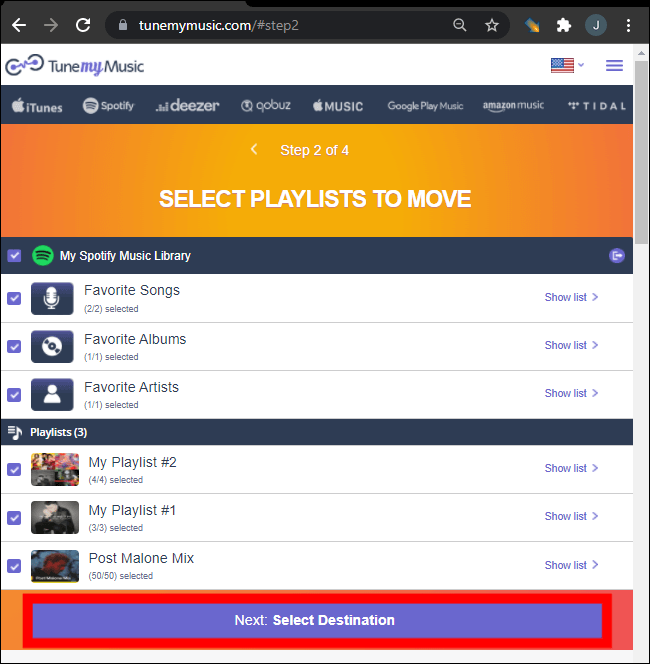
ステップ 5: Click “Start Moving My Music.” The service will match songs and create the playlist in Apple Music.
Soundiizの使用
Soundiiz is another powerful online playlist management platform that supports many streaming services.
ステップ 1: Sign up or log into the Soundiiz dashboard.
ステップ 2: 承認する Spotify so Soundiiz can access your playlists.
ステップ 3: Add Apple Music as a connected service.
ステップ 4: Choose the playlist you want to transfer.
ステップ 5: Click Convert and choose Apple Music as the destination.
After the process finishes, the playlist should appear in your Apple Music library.
Limitations of Online Tools
Although online tools are convenient, they may have several drawbacks:
- Free versions often limit the number of songs transferred
- Matching accuracy may vary
- Large playlists can take longer to process
- Internet connectivity affects performance
パート4。よくある質問
乗り換えできますか Spotify to Apple Music for free?
Some online tools provide free playlist transfers, but they may limit the number of songs. Premium tools typically offer faster transfers and additional features.
Will all songs transfer successfully?
Most songs can be matched between the two services, but occasionally, some tracks may be unavailable due to licensing differences.
How long does it take to transfer playlists?
The time required depends on the size of the playlist. Smaller playlists may transfer within minutes, while larger libraries may take longer.
Can I transfer multiple playlists at once?
Yes. Some tools, including DumpMedia Any Music Converter, support batch transfers so you can move several playlists simultaneously.
Is it safe to use playlist transfer tools?
Reputable tools use secure authentication methods to connect to your streaming accounts. Always choose trusted services when you transfer Spotify AppleMusicに。
パート5:結論
Moving playlists between streaming services no longer has to be difficult. With the right tools, you can transfer Spotify to Apple Music quickly while keeping your music library intact. Thanks to its powerful Playlist Transfer feature, DumpMedia 転送することができます Spotify songs to Apple Music accurately, maintain playlist structure, and migrate multiple playlists with ease. By choosing the right method, you can enjoy your favorite music on Apple Music without losing the playlists you’ve spent years creating.

めにサインアップ